
New walks manager
The new walks manager is easy to use. You need to select your contact preferences once, then add a walk each time you offer a walk. If you wish to lead a walk this shows how to add one to walks manager. You must be listed as a walk leader on our system to be able use this.
Your contact preferences
Contact preferences must be selected, otherwise your name will not appear and it will not be possible to contact you through the web site about your walks. These preferences are separate from your main Ramblers contact details and specify only what will be displayed to viewers of your walk details.
By default, your contact name and details will not be shown. To enable the details to be shown you need to log on to Walks Manager and change your Contact preferences.
Log in at https://walks-manager.
Click the person symbol at the top right.

Click Contact preferences.

Check your Display name, contact number and email address are correct. If these details are incorrect they need to be fixed in Assemble. Contact us for help with that.
Under the Permission section, you need to tick each of the boxes if you are happy for that information to be displayed. Please select at least the first two options as shown:
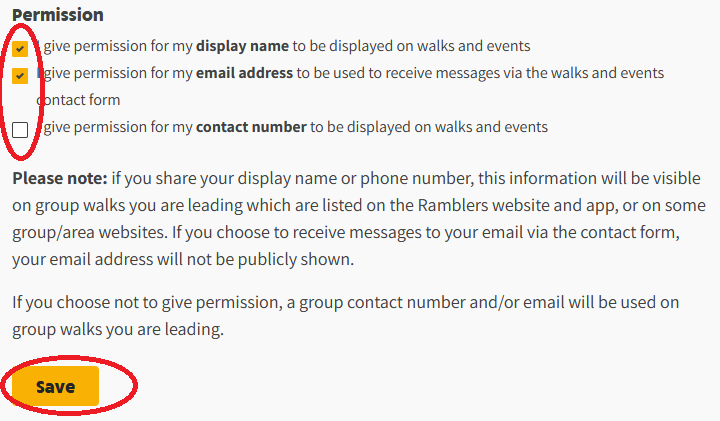
Note that your email address will not be visible - messages will be sent to you via a form.
Click Save at the bottom of the page after making adjustments.
Adding a walk
Log in at https://walks-manager.
Click "Add a walk".
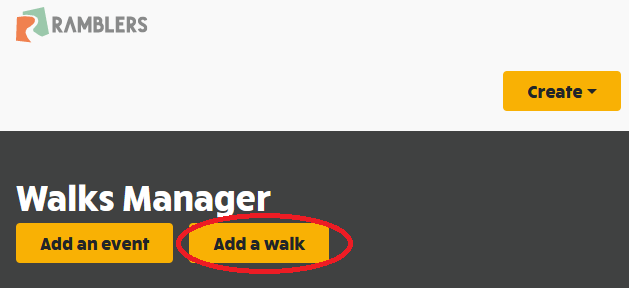
If this doesn't work for you please let us know as we may need to tweak your assigned roles.
Fill in the pages of the form, clicking save and continue at the bottom of each page. New in Walks manager - if you wish, add up to 5 images to your walk description on step 2.
When entering the start point on step 3, after finding the rough location using a text search, the map marker can be dragged to the exact start point which will complete all the coordinates and post code for you automatically. We recommend that you do not add a separate meeting point on this page but instead describe any available car share meeting point in the Additional details section on step 2.
When you have finished, a preview of your walk will be shown. Finish by clicking "Submit for checking" to make it visible to the walks editors.
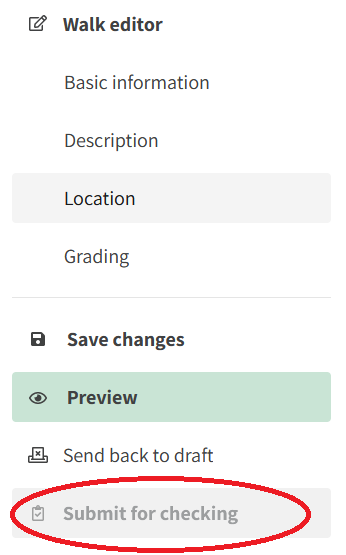
If you have any comments or problems with the new system, don't hesitate to get in touch.
Editing your walk
To go back and edit your walk at a later time, log in at https://walks-manager.

Find your walk by clicking on List view at the top of the page.
Find your walk in the list and click on its title which will open a preview of the walk. Click on one of the headings under Walk editor to edit the desired section of the walk description.

Finish editing with "Submit for checking" as above.